
Ticket System Discord | A bot to give support
If you've heard anything about Ticket System Discord and you are not sure about what it is or how it can help you to improve the support you provide on your Discord server, in this guide we will give you absolutely all the information you may need about this bot. We will explain what Ticket System Discord is, how it can help you and how to use it correctly so that it ends up fulfilling its objectives.
One of the first things you need to know about Tickets Bot is that it is a perfect option for all those people who are looking for a Discord support systemThe name of the product gives us a very clear idea of what it is and what it is used for.
As you may already know by now, Discord support allows us to improve the quality of our service and the response time we offer to our users who have encountered a problem, a question or any kind of incident.

It is clear that it will depend on the type of community you have, but the truth is that in the vast majority of cases this bot can end up being a great addition to your server, since Tickets Bot is responsible for providing several ticketing tools.
What are the main features of Tickets Bot?
Among the main tools or functionalities that Tickets Bot puts at our disposal we can highlight the following:
- Keep track of tickets and canned responses in order to be able to answer frequently asked questions automatically.
- Panels for users to open a support ticket.
- A web user interface to more easily manage support, providing an option to have a live chat for better support.
As you can see, it is a bot that is really useful when creating support teams that have the ability to view and respond to support tickets that are submitted by users of your server.
A detail that should not be overlooked is that you can configure different support teams so that they can correctly manage the tickets that are open through different panels.
In order to perform all the operations mentioned above, you will only need to use the "Equipment" area.
Now we are going to give you all the information you need about the Discord Ticket System so you can use it effectively and provide the best service to all your users.
How to use Tickets Bot for Discord support
Now we are going to take care of giving you information that you can use in case you are using the Tickets Bot:
What commands does Tickets Bot use?
In case you have decided to use Tickets Bot, it is important that you know the basic commands so that you can make the best use of it:
- /aboutinformation about the /about bot.
- /addAdd a user to the ticket /add # ticket @user.
- /addadmingives administrator privileges to a user /addadmin @user (administrator level).
- /addsupportgives a user the privilege to act as support /addsupport @user (administrator level).
- /blacklistis in charge of activating the users that can interact with the bot /blacklist @user (support level).
- /cancelThis command cancels the configuration process (administrator level).
- /claimassigns a ticket to a staff member (support level)
- /closecloses the ticket.
- /helpshows the list of commands.
- /managetagstags are predefined text fragments sent by the bot, which can be used to send answers to questions more quickly (support level).
- /openThe new ticket will be opened.
- /panelThis command creates a panel so that users have the possibility to open a ticket with 1 click (administrator level).
- /remove: the command to remove a user from a ticket.
- /removeadminremoves a user's administrator privileges /removeadmin @user (administrator level).
- /removesopportremoves a user's administrator privileges /removesupport @user (administrator).
- /rename: is used to rename the ticket in question /rename channel-name (support).
- /setupThe bot (administrator) is easily configured.
- /statsallows you to view statistics about users, server and support team /stats [server / @user] (support).
- /tag: to send a predefined text fragment /tag mytag (support)
- /transferis used to transfer a claimed ticket to a different user /transfer @user (support).
- /unclaimThe command removes a complaint from the ticket in question (support).
- /viewstaffA list of the team and their roles.
- /voteCreate a link to vote.
You can copy the list of commands to have it always at hand and be able to use them according to your needs, although as you have seen, they are actually quite simple and you will be able to learn them in a very short time to use them when you need them.
What are reaction panels and how do they work?
Undoubtedly, one of the main features of Tickets Bot is that it has reaction honeycombswhich end up being really useful. These reaction panels are embeddings that are sent by the bot, thus creating ticket channels when you react with one of the emojis that have been chosen.
That is, through this function, users have the possibility to react to a panel that instantly opens a ticket for the user, without the need to execute any command.
Here you can see an example of what it would look like:
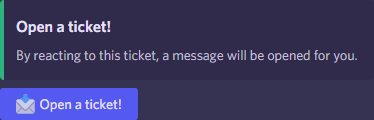
It is important to note that the panels can be made in the dashboard, in the reaction panel area. Also, you have the possibility to find a direct link to the honeycomb page of the server, something that can be done using the command "/panel" (without quotes).
In case the server does not appear in the panel, you simply need to make sure that you are the owner of the server. If you are a co-owner, then it is important that you have administrator permissions and all the necessary permissions, because if you are not the owner of the server, you will have to ask the administrator to add you to those permissions using the "/addadmin" or "/addsupport" command.
However, you have to keep in mind that custom emojis cannot be used for reaction panels for now.
If it happens that your panel does not appear in the channel, simply check that you have saved the configuration and that there is no error message in the bottom right corner. You will also need to make sure that the bot also has permissions to send messages/embeds and can manage reactions in the panel's channel.
How much does it cost and what are the advantages of the premium version of Tickets Bot?
Tickets Bot has a premium version for all the servers you have, paying only $2 in the Official Patreon.
Regarding the use of this subscription, you should know that it gives you access to unlimited reaction panels, to a statistics command and removes the bot mark that appears at the bottom of the messages.. In addition to the above, it also provides the ability to read and respond to ticket messages through a dashboard.
If what we have mentioned above is not enough for you, bear in mind that they have a higher level, in which you can pay $4 by Patreonpremium level called Whitelabel o White Label.
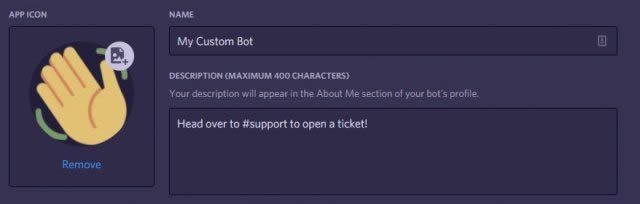
The plan whitelabel is a service that is provided by Tickets Bot, in which you will have the possibility of create a bot with your username and you can create a bot with a custom username and image, All of this can be done through the developer desktop, plus you'll have it hosted on Tickets Bot, so you can have a Tcikets experience that best fits the brand of your server, community or business.
Now you know what Tickets Bot is and why it is one of the best Ticket System Discord currently available. If you have a professional or business server, it is possible that the premium plans are better suited to what you are looking for, so we recommend that you analyze the different options they make available to us.
 English
  Español
  繁體中文
繁體中文  Deutsch
  日本語
日本語  한국어
한국어  Français