
How to Disable AutoStart in Discord?
In this article, we will explain briefly and clearly the steps you have to follow in order to be able to disable AutoStart in Discordpreventing the program from running at startup.
When we just bought a computer the time it takes to start Windows is very short, which means that, the process of turning on the computer and wait until we can start using it without any processes loading, it is very short and fast.
However, as we install programs and as time goes by, the start-up time is getting longer and longer and we have to wait longer for them to stop loading processes and we can start using the equipment comfortably.

In large part, this is because there are many programs that configure themselves to start as soon as Windows starts, which means that as soon as the operating system starts to load, these programs also start to load so that they are ready for you to use them immediately.
This is very useful in the programs that we use as soon as Windows loads, but if it is a program that you use in specific moments, as in your leisure time, it is better to have the automatic start option disabled to speed up the system load time. So if you do not always use Discord as soon as you turn on your computer, it is best to disable the auto-start option in Discord to prevent it from starting at system startup.
Steps to disable auto-start in Discord
Disable Discord automatic startup, is a really simple process with which you should not have any complications. You just have to follow the steps detailed below:
- Starts the task manager by pressing the keys Ctrl + Alt + Del.
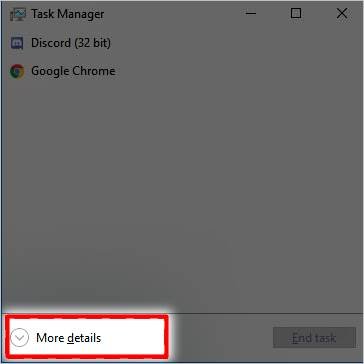
- Once the task manager is open, if you see it in a summarized form and it only shows the processes that are running, select the option "See more details".
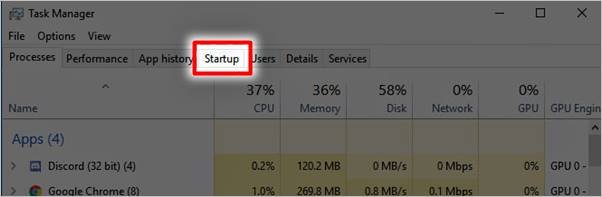
- Now, that you have a more complete view of the manager and see some tabs at the top, select the "Inicio".
- Under the Startup tab you will see all the programs that can be run at startup (at system startup) and you will notice that there are some that under Status say "enabled" o "disabled". You will notice that Discord says "enabled".
- Select Discord and now go to the bottom right side of the window, to the option that says "Disable".
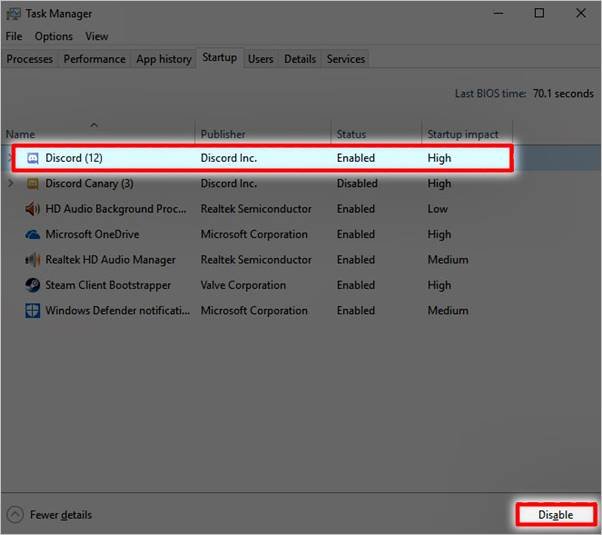
- Once this is done, Discord's AutoStart will be disabled and it should no longer open automatically at startup.
This option is done through Windows and is very effective; but if for some reason you notice that the program keeps running at startup, there is another option to disable it within the same Discord program.
Disable automatic startup from Discord
- Start by opening your Discord program.
- Go to the "User settings". and then to "Windows Configuration"..
- When you select this option you will notice that on the right side of the screen there are several options, among them you have to select the slider that says "Open Discord". to disable the option.
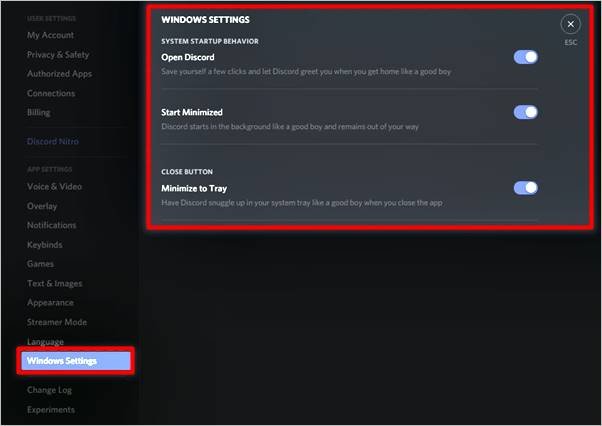
- That's it, once you have disabled this option the program should no longer run automatically when you start your computer.
As you can see, the steps you have to follow are as follows are really basic and you should not have any complications to follow them as we have explained above.
If Discord is one of the first programs you open as soon as the operating system loads, it really doesn't make much sense for you to disable automatic startup.However, if you use it after work and prefer not to start it, then following the steps in this tutorial will be of great help.
 English
  Español
  繁體中文
繁體中文  Deutsch
  日本語
日本語  한국어
한국어  Français