
How to create a Discord account?
If you are interested in create a Discord account, you will already know that this is one of the applications that has gained more users in recent years thanks to its operation, since allows players to keep in touch with each other with your friends while playing, or even with groups or communities of gamers.
The application is so effective that there are even work groups that use it for better communication and to keep in touch without complications. Allows sharing of videos, images, text, calls, etc.It really is a very complete application.

One of the major advantages of Discord is that it offers is available for most of the current operating systems.in addition to can be used from your web application without the need to have it installed on your computer or cell phone, so you can use it without complications and regardless of the device you are using at the moment.
The program has premium versions that offer some integral functionalities, but the free version is very complete and more than functional, so you won't have to pay to create a Discord account and start taking full advantage of this platform.
Steps to create a Discord account
In order to create your account and start using this platform, just follow these steps:
- Open the application or access the page www.discordapp.com/register (click here), and choose the "Register".
- Please fill in all the information requested in the form.. It is very basic information such as a username, your email address and a password.
- Once you have entered all the requested information, you only have to choose the option "Continue".

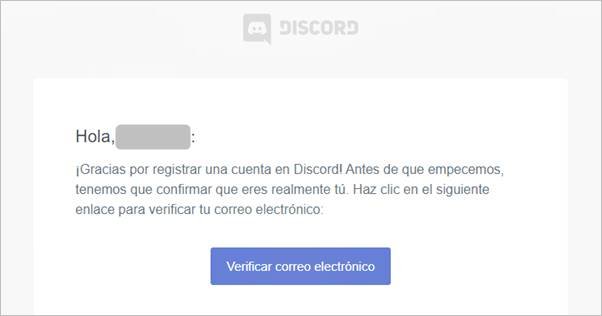
- Now, you will see a message indicating that you have been sent an account confirmation emailwhich you will have to open.
- Go to the email that was sent to you, open it, and click on the following link so you can verify that you are the owner of that email account.
- You will be taken to a web page where you will see a button that says. "Verify email"Select it to finish the process.
- Once you have done this, your account has been successfully created and without complications.
Ready! If you have followed all of the above steps, you will have finished the process of creation of your Discord accountand you will be able to join your friends' servers o create your own server to invite your friends.
- Sources: https://support.discordapp.com/
 English
  Español
  繁體中文
繁體中文  Deutsch
  日本語
日本語  한국어
한국어  Français