
How to Delete your Discord Account?
Discord has become a very large platform and complete both for players and for all types of users and communities that want to have a better communication.
It is a program that allows you to send text messages, voice messages, video calls, emojis, etc.. practically everything we need to have a rich and fluent communication.

It has also become a very good tool for streamers, allowing them to record your games immediately and transmit them in some of the most popular services in a fairly simple way.
However, on some occasions the platform may simply not be what a user is looking for in order to have easy communication, so they may opt for delete your Discord account.
This way, if you are sure you want to delete your Discord account forever, you can do it very easily following the steps that we are going to explain in this article.
How to delete a Discord account permanently?
Now, we are going to explain the different methods you have to delete your Discord account depending on the device you are using:
Delete your Discord account from your cell phone
Please note that you cannot delete your Discord account from your cell phone.. This action has to be done from the desktop version of the application.
In case you don't have the application on your computer (or the possibility to install it), you will simply have to contact Discord support team from this link.
- Select the subject of your inquiry.
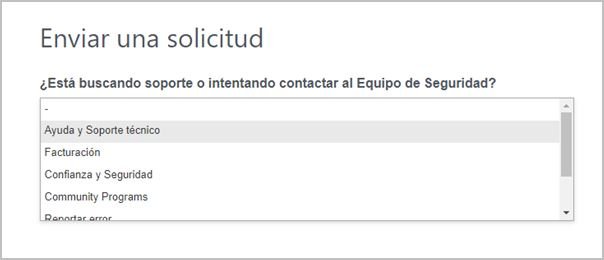
- Enter your email address.
- Select in the question type "Account Deletion".
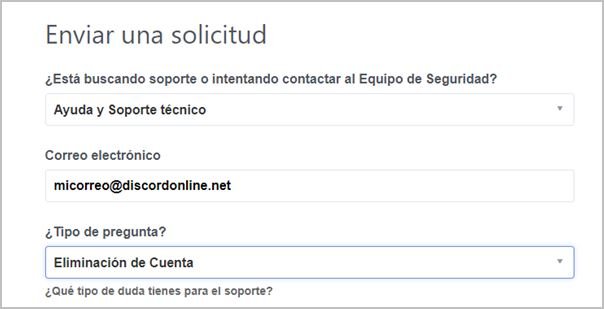
- Now select the operating system you are using (in this case iOS or Android).
- Provide a description or details about the problem you have (account deletion), and press the button "Submit" (send).
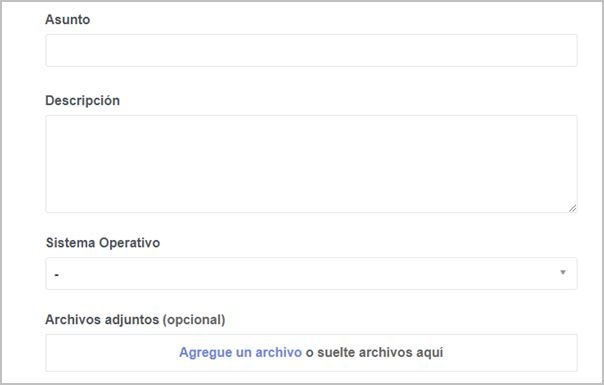
That's it, now you simply have to wait for the support team to take care of deletion of your account.
Delete Discord account from PC
Account deletion is finalSo we really don't recommend that you delete it if you are not absolutely sure that you will never want to use it again. Even the project administrator won't be able to do anything about it, so we we recommend you not to make a hasty decision about the deletion of your account.
If you are absolutely sure you want to delete your account, just follow the instructions we will share below:
- Open the Discord application on your computer.
- At the bottom of the main window find your user name and select the icon for gear button to the right of your username.
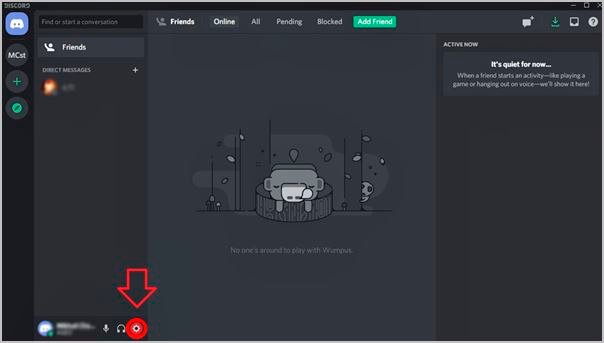
- Now go to "My Account" (My Account) to access your account settings.
- Select the button "Edit" (Edit) on the right side of the screen.
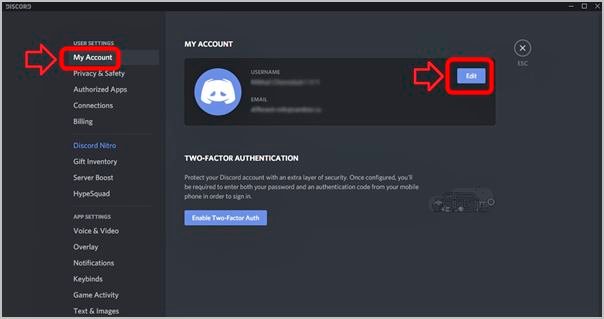
- At this point, the only thing you have to do is click on the option "Delete account" (Delete Account).

Now, you will only have to close the program and delete it from your computer. Keep in mind that, as mentioned above, by following this process you will have completely deleted your account..
If you want to use the program again, you will have to create a new account that it will not have the information that your previous account had.
* Note: Keep in mind that if you are the administrator of a server (group), you must first of all confer your permissions to another member. Otherwise, your community members will not be able to communicate after I delete your account.
 English
  Español
  繁體中文
繁體中文  Deutsch
  日本語
日本語  한국어
한국어  Français