
How to create an account or access Discord in English? - Easy guide
If you have already downloaded Discord from the store on your cell phone, open the application and log in to your account by clicking on the option at the top right, otherwise you need to create one. To do this simply open the official page and download the Windows version or download it from the browser.
Both methods are the same, but if you log in from the browser you need to click on "Log in" and immediately below this section you will find the "Create Account" option where you will need to fill in the required fields with your information. It is important to know that you need to verify your account by clicking on a link sent to the e-mail box you used for registration.
What accounts can I use to register on Discord?
Discord allows its users to register with an e-mail address of their choice. This means that accepts most e-mail services such as Outlook, Yahoo and of course Google.
With the Gmail account
When you create an account on Discord you can use the Gmail account without any problems it is important to know that you need to verify your e-mail, so make sure everything is okay with your login before registering.
From Facebook
You can access the official website of Discord from their Facebook page and from there create your account; you can also send a message to their community technical support for the purpose of creating an account with the e-mail address used for your Facebook profile.
On what devices is it possible to create a Discord account in English?
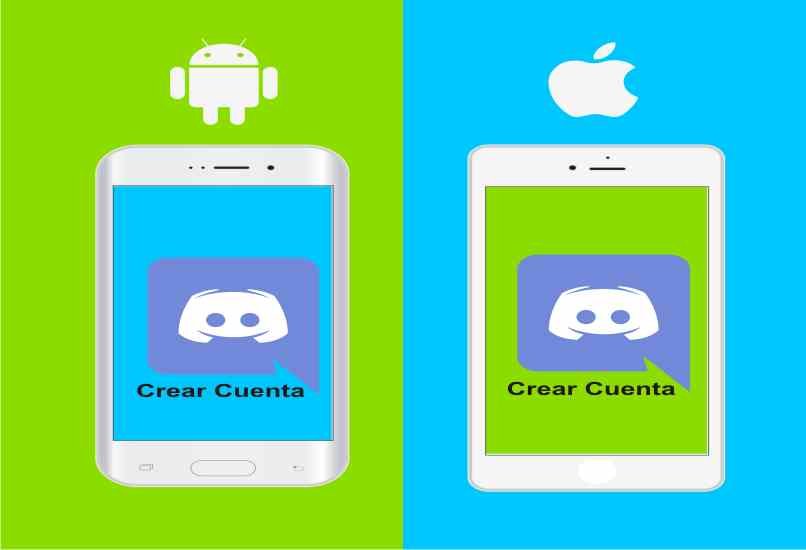
You can create a Discord account in English from any mobile device or computer, regardless of the operating system, also the procedure is very similar in all devices:
From Android
- Access the latest version of the Play Store and download Discord.
- Open the application and click on "Registration."
- Fill in all the information required for registration, such as e-mail, password, the username you will use, and click on next.
- Open the inbox of the e-mail used and enter the message sent by Discord.
- Click the confirmation link and accept the procedure in the blue button displayed and you are done.
On iOS
- Downloading Discord from the App Store may sometimes require Apple ID, Touch ID, or Face ID.
- Once you have downloaded the app, log in to it and where it says "Welcome to Discord" click on "Register."
- Fill in the registration fields with the information you prefer.
- Check Discord from your inbox in the e-mail used for registration and you are done.
On Windows and macOS
- From your browser go to the official Discord website and click on sign in.
- Click on "Create an account."
- Enter the e-mail address, password, user name and date of birth, then click Continue.
- Verify the e-mail by opening the sent link and you are done.
What are Discord servers for?
不協和 is a chat application that works with servers these tools are very useful for players and are even more so when used from the computer. The basic use and main features of Discord on its servers are:
Chat between users
As a messaging platform the chat function tries to be always available, on the servers servers, video calls and any other place that allows it, as this is the main feature of the interaction.
Making video calls
The video calling function on Discord servers is special in that the platform supports the extension of it very well, in other words it is like a voice chat in that it does not slow down the device in group video calls.
Sharing screen
In Discord a user can share their screen at will and show what they are doing on their device. Even if it is a a video call to 10 people who can share their screens without any problem, allowing them to play and talk at the same time.

Is discord safe to use nowadays?
Although similar platforms have sprung up, Discord remains one of the most secure and stable applications recommended by players, because of the size and amount of configurations available for all users. Of course, you have to be careful about the server you enter and the data you offer.
Tips and tricks to improve performance on Discord
Discord has specialized in player problems because of its efforts to maintain a voice or video chat without slowing down our computer. To get the most the following tips and tricks are recommended:
Creating your own servers
By creating your own servers, you can configure it as public or private the ability to assign roles to other users for the purpose of keeping the server active even if you are not present is very useful for security.
Organizing channels
The best way to organize a channel on Discord is to by assigning roles and granting them permissions to configure channels to keep participants informed of their preferences.
Add friends
If you want to improve the performance of the channel, it is essential to add new friends who share and contribute ideas on the same topic. The more the number increases, the better the experience and the better the performance in all aspects.
Adding bots to the server
To have a channel or server in optimal condition Discord allows you to use bots that take care of creating automatic actions such as displaying rules, welcoming new users, answering questions, listening to music, and many other activities that you can configure to suit your needs.
 日本語
日本語  Español
  繁體中文
繁體中文  Deutsch
  한국어
한국어  English
  Français