
How to install Discord on different devices? - English setting
If you are a member of the gaming community or are simply looking for another discord messaging platform is one of the best options and in this article we will outline some steps to follow if you want to install it and also how to configure it in Spanish.
What is the main function of the Discord application?
Discord is another messaging platform very similar to Skype, it has several functions, but the main one is to be able to communicate, with the difference being that this one is aimed at the gaming community.
For people who are passionate about video games, it is very useful when they play online, because through it they can direct the game, make video calls, send audio and do voice chats. It should be noted that you do not necessarily have to be a gamer to use Discord, but you can simply use it to communicate with your friends or family members.
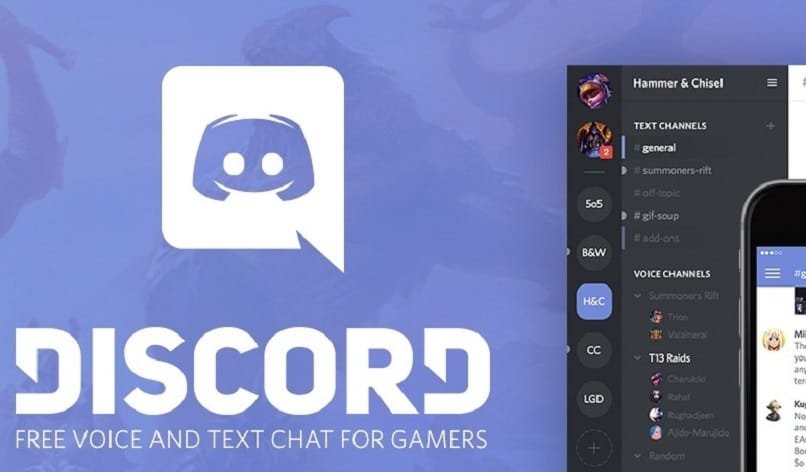
Other people have chosen to use Discord as their forum platform, where players with similar tastes can meet, such as people who like a specific game, but forums with other topics, such as self-improvement, can also be found, and even anime fans have their own forums.
Discord is available on computers with operating systems such as macOS, Linux, Windows, and for Android and iOS cell phones, also has its own web version.
How can I install Discord on any device?
Discord can be installed on different devices and below we explain how you can do it on each of them.
IOS device
Simply locate the official store, in this case the App Store, and in the search bar type Discord. The original application will always appear first, and all you have to do is click install. The operation will take a few seconds, but it depends on your Internet speed.
Android device
In the case of Android, the procedure is very similar to the previous one, except that in this case you need to look for the official store, which is called the Play Store, once there, in the search bar, type Discord. When you find it, click install.
On a Windows PC or Mac
To install Discord on a Windows PC or Mac you just have to search in the browser of your choice Chrome, Opera Firefox and place Discord, where several pages will appear, click on one of them and then start the download. It is worth mentioning that you can also install Discord in the Linux operating system, and the steps are the same.
How to configure the Discord application in English?
When you download Discord, it usually comes with the language of the country you are in, however you can set the language manually, just open the user settings, click on the option that says languages and you will get a long list, just select yours, in this case Spanish.
What can I do after installing Discord on my device?
Once you have installed Discord, whether on your computer or cell phone, there are still a few small things you need to do in order to use it fully getting the most out of the application.
Create an account
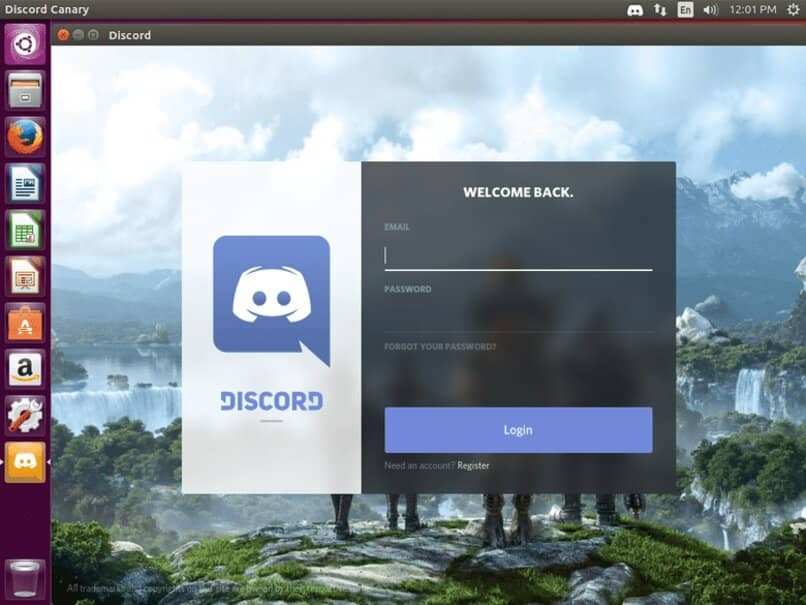
The first thing to do after installing Discord is to create a personal account to do this, open the application from your PC or cell phone; when you open it you will see several options, such as log in, forget password, you have to click on the one that says register, where you will be asked for some small details such as your name.
That is your personal details to avoid any inconvenience when entering the nickname be very careful not to enter something rude otherwise the account will be locked and that is not what we want. Once you have finished filling out the small form, you will automatically be taken to the main menu.
Add contacts
When it comes to adding friends to your Discord account, it is very simple Discord gives you the ability to connect it with other accounts such as Facebook, Twitter, etc to make it easier to find friends.
However, you can also add friends just by searching their names on the servers they are subscribed to, just click on the add friends button, or click to see their profile and there you will also have the option to add them.
And the last way to add friends on Discord, if you know the person's name, you need to type it into the search bar at the top left, then simply click on their profile picture to send them a request. Submitted requests can also be deleted in case you repent.
Creating a chat
Once you have added several friends to your Discord account, all that remains is to create a conversation with anyone on your list through chat, where you can send GIFs, pictures, audio, and you can also create your own stickers. To create or start a chat just search for the person and click on the send messages option; you can also create groups
Enter the group
In Discord, as we mentioned, you can create groups and add your friends or family members, however there are public groups or public servers but many times you do not know how to search for such groups, on the Internet there are pages where you can explore and see if you can find a group of your interest in those pages to search for public employees or the group we have:
On each of these pages you can find a search engine where you have to type in the topic of your interest, some of them also have an index where you can see all the types of groups that exist in case you are not sure what kind of topic to choose, there are also indexes which show the most popular and the most recent groups.
Finally for join a group just click on the join button, will automatically direct you to Discord, whether you search for it on your phone or PC, or simply take you to the Web version. If you access one of these, a small window will appear indicating that you have been invited to join the group; click the join button to complete the process.
At this point you will be in the group you have chosen and can interact with other members you can join any group you want.
 Français
  Español
  繁體中文
繁體中文  Deutsch
  日本語
日本語  한국어
한국어  English