
How to fix Discord error 1105 on Windows? - Access to the server
Discord is considered the best communication platform where millions of people around the world can communicate with friends or strangers via text, voice and video
You can use it anywhere and it is available for free for Windows, Mac, iOS and Android. It is also possible to use the program through a browser without having to download it. In the following instructions, we will explain how to fix Discord error 1105 on Windows.
How can I fix the Discord login error?
Although the platform is very successful platform is sometimes problematic, one of them is error 1105, which occurs when the user tries to log in with a Windows PC.
There are several reasons for this login error, some of them are problems on the CloudFlare or Discord server, the network is restricted or the app was corrupted after updating Discord.
Below we will explain how to solve this access problem.
Make sure that it is not a problem with the server
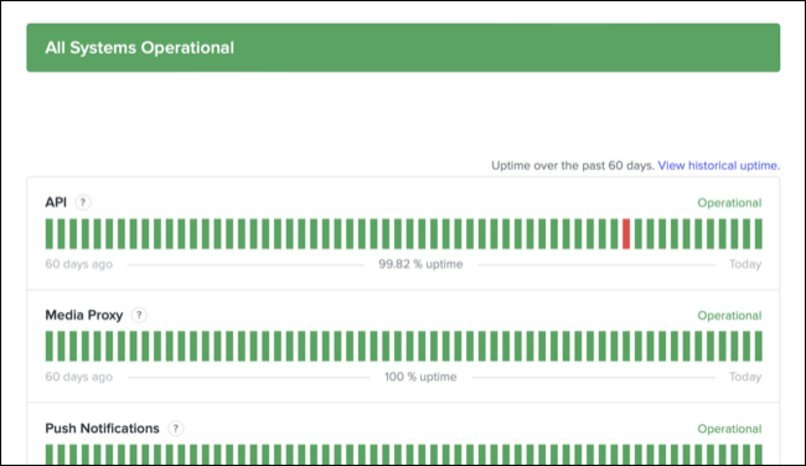
If you receive error message 1105, the first thing you should do is the following check the status of the servers, in this case CloudFlare and Discord, you can check the status and real-time error reports on the Discord status page and on cloudflarestatus.com.
Outages in Discord are server errors that cause the server to stop responding to requests from users. It can also be the result of crashes, system crashes or communication problems, in any case there is nothing you can do about it, you have to wait until they fix the problem usually lasts only a short time.
However, if everything is working fine on the Discord and CloudFlare servers, the problem could be your network or a bug in the Discord installation.
Switching networks
If you have this problem when you are connected to a restricted network, such as a work network, school network, WiFi, public place, you should try to connect to a home network and access Discord again.
If you can log in, it means that the administrator of the other network has restricted services like Discord in some way. The only thing you can do in this case is to contact the network administrator.
However, you can also use a VPN service to hide your IP address and get another one in a different region to avoid restrictions.
Using a VPN
A VPN is used to keep your data, location, and other information private. VPN services allow you to use an IP address from servers anywhere in the world and encrypt your personal data and Internet activity.
Using a VPN is useful when you are connected to a restricted network and you do not have the possibility to switch to another network. This way you can bypass the restrictions imposed by the network administrator.
There are many free VPN software and services for Windows PCs, such as TunnelBear VPN, Globus Free VPN, ProtonVPN, CyberGhost, NordVPN, which you can easily configure for use on your PC. After selecting the VPN of your choice, log in to your Discord account to check if the error is fixed.

Deleting data from the Discord application
If you have checked the above methods and there are no problems with the server and you are not connected to a restricted network, the problem could be in the application's cache and corrupted data; this error usually occurs due to an incorrect or failed update. Sometimes the problem with accessing Discord is solved after the corrupted data is deleted.
You need to follow the steps below to clear the cache and data on Windows:
- Press the Windows logo key + 'R' key to open the 'Run' utility.
- Then paste %AppData% and press "Enter".
- Go to the Discord folder and open it with a double click.
- Open the folder with the cache.
- Select all files in the cache folder and delete them
- Open "Run" again, type %localappdata% and click "Enter".
- Locate the Discord folder, open it, select all the files and delete them.
- Finally, log in to see if the error is fixed.
What do I have to enter at the command prompt to clear the cache?
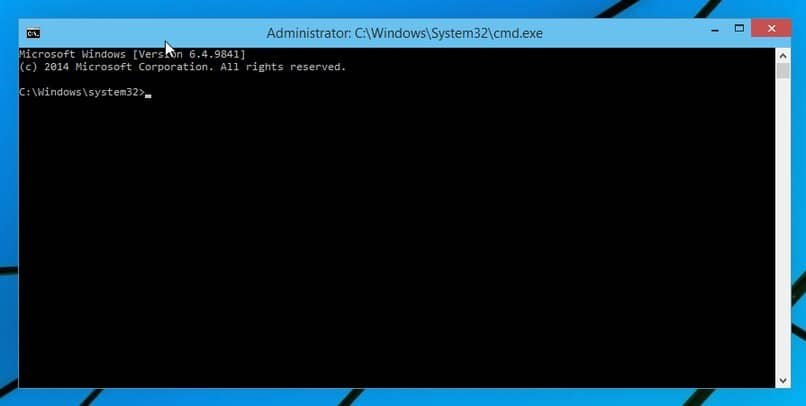
To clear the cache from the command prompt of your Windows PC, you need to do the following:
- Call the command prompt by typing "CMD" into the search box in the Windows menu and clicking "Enter".
- Now enter the command 'ipconfig /flushdns'.
- Then you have to reset the winsock catalog with the command 'netsh winsock reset'.
- It is recommended to reboot the system.
- Open the "Run" window, type %localappdata% and click "Enter".
- Locate the Discord folder, open it, select all the files and delete them.
- Finally, log in to check if the error is fixed.
How can I verify that the error is on the server and not on my network?
As mentioned above, to check if it is a server error and not on your network, you should check the status of Discord and Cloudflare servers on their official pages so that you can see if the problem is with your connection or a general website crash.
On the Discord status page you can see the status of the servers and they also tell you what the problems are and when they will be fixed. Another option is to use the official Twitter account for information. How to fix Discord error 1105 on Windows?
 Deutsch
  Español
  繁體中文
繁體中文  日本語
日本語  한국어
한국어  English
  Français